|
Learn more about Half Panel Colour Ribbons |
Ribbon Specifications |
The Half-Panel YMCKO Color Ribbon is a dye sublimation
ribbon which
has the same ink specifications as the Standard or Full Panel YMCKO
Color Ribbon.
The only difference between the Standard YMCKO Ribbon and the Half-
Panel YMCKO Ribbon consists in the length of the Yellow, Magenta and
Cyan panels which, for the Half-Panel, is twice as small as for the Standard
Panel YMCKO Ribbon (see comparison below).
|
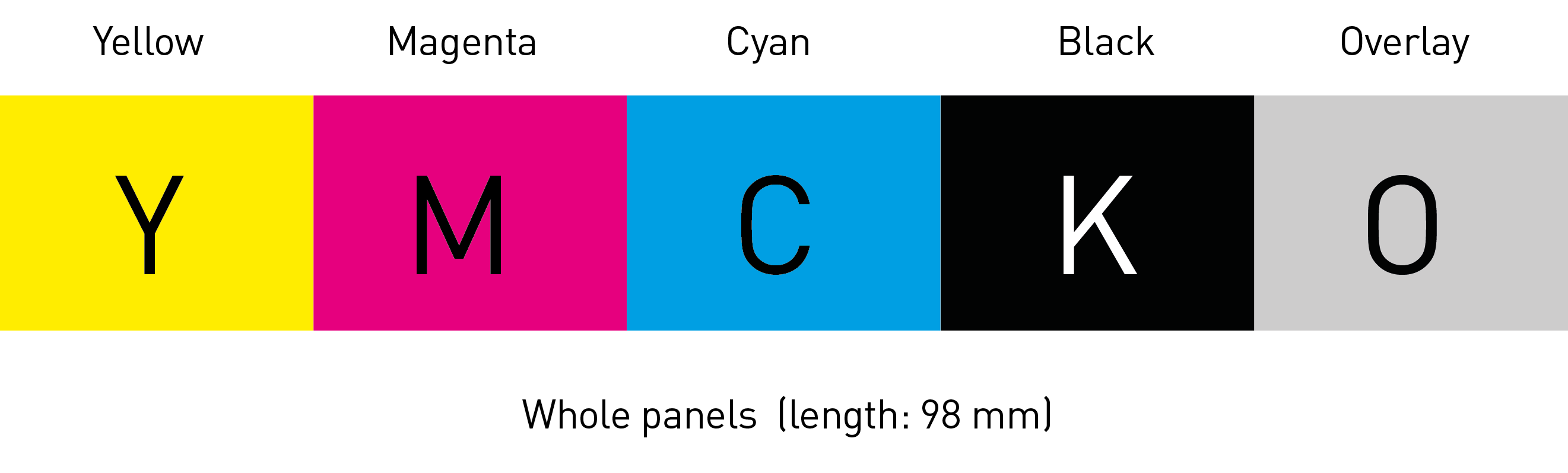
Standard / Full YMCKO Ribbon Description (Part Number: R3011):
|
Yellow - Magenta
- Cyan - Black - Overlay
|
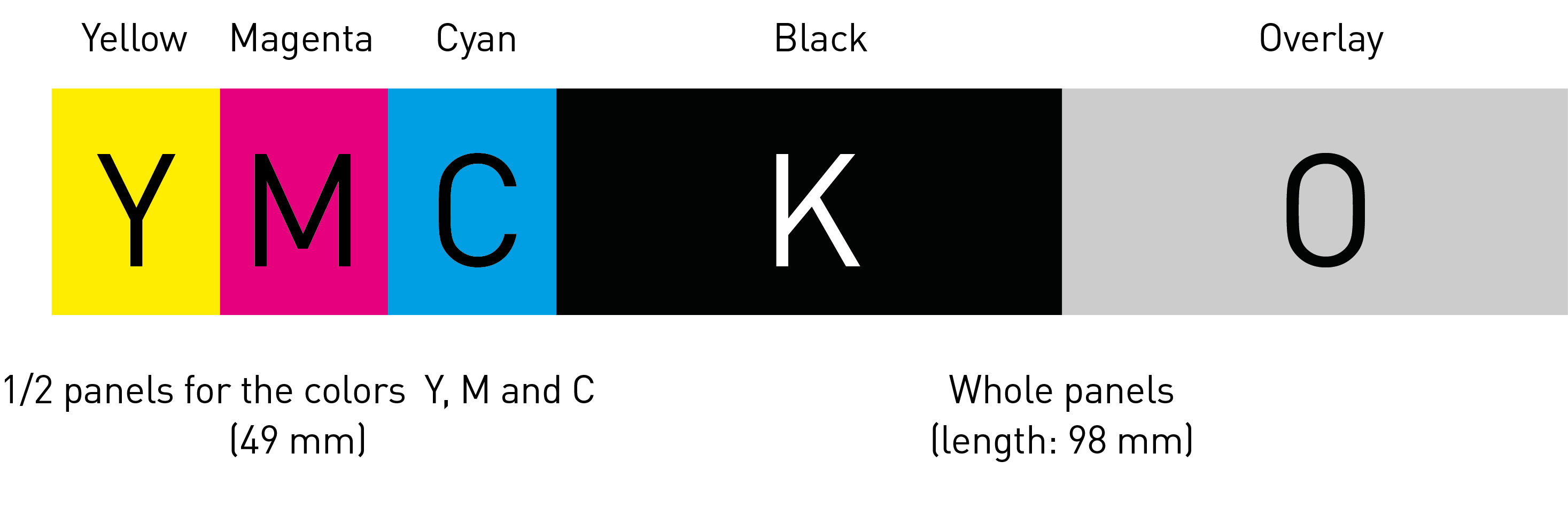
Half-Panel YMCKO Ribbon Description (Part Number R3013): |
|
Yellow - Magenta - Cyan - Black -
Overlay |
Full Overlay panel (98mm length)
Full Black Resin panel (98mm length)
Half panels for the Yellow (Y), Magenta (M) and Cyan (C) colours (49 mm length).
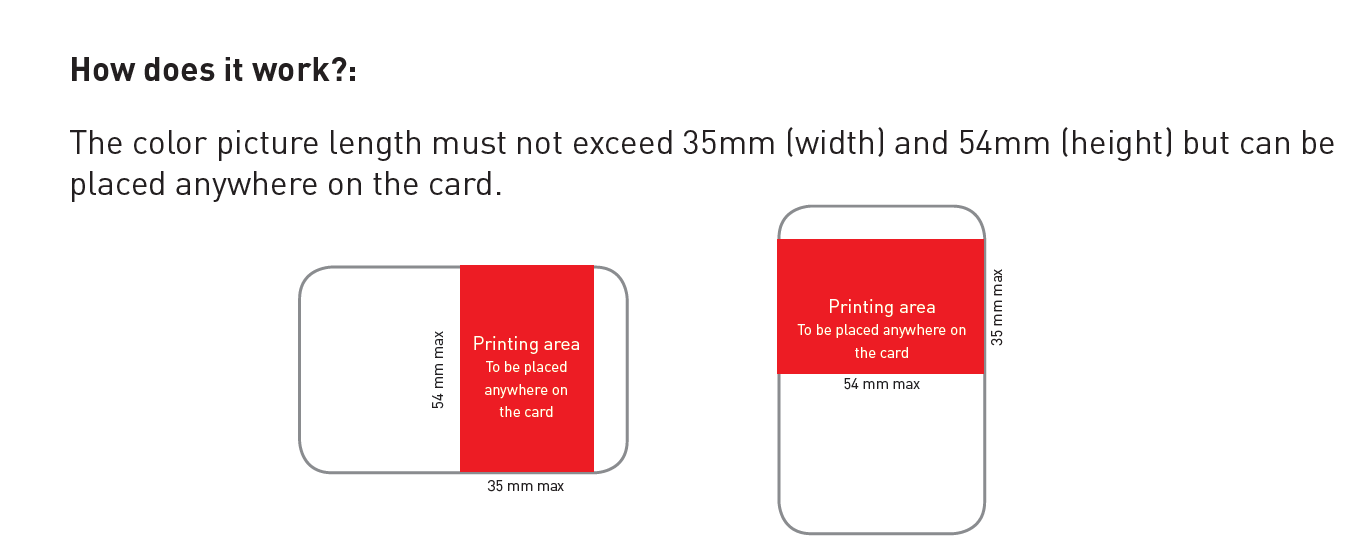
Maximum colour printing area is 35mm.
|
Market applications |
The new Half-Panel Color Ribbon is used in the
Identification market when
a color ID picture and some black resin printing (i.e. texts, logos and
barcode) are required.
In many cases, this ribbon is used on blank cards but also on pre-printed
cards. The main applications are student ID cards, transportation ID
badges, employee ID badges, club membership cards, and driver's
licenses.
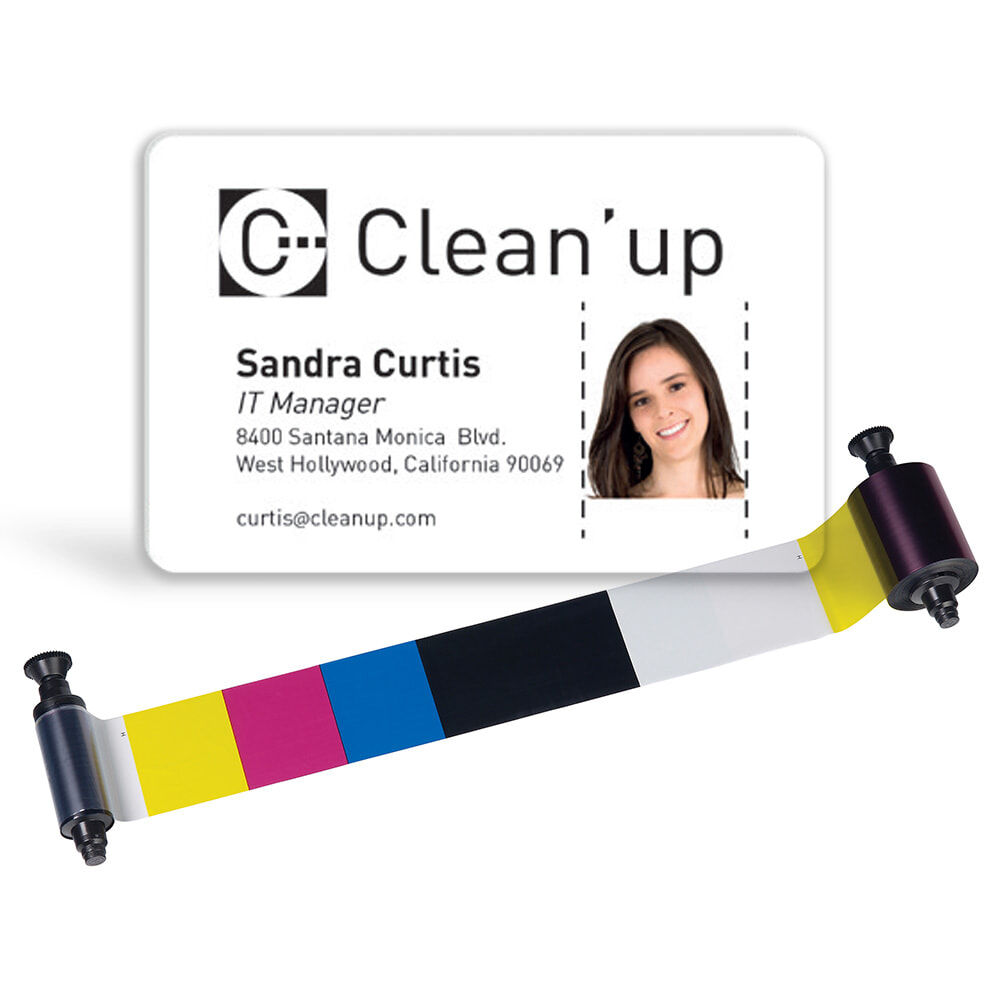
Below, this is an example of an Employee ID badge |
|
Advantages |
42%
less cost per card than the Standard YMCKO Color Ribbon (End
User Price)
Higher printing autonomy than the Standard YMCKO Color Ribbon for
less operator intervention (400 cards/roll instead of 200)
Evolis is the only card printer manufacturer of the market to provide this
type of ribbon
|
Compatibility |
The Half-Panel YMCKO Color Ribbon is to be
used on all the Evolis color
card printers.
On the Pebble and New Pebble Card Printer Range: Firmware Version
0249 or higher and Windows Drivers Version 5.0 or higher must be
installed with these printers to be able to support 100% the new Half Panel
Colour Ribbon.
These Firmware and Driver versions or higher can be downloaded from the
Evolis Web Site at www.evolis.com on the Support & Services section. |
How does it work? |
IMPORTANT!
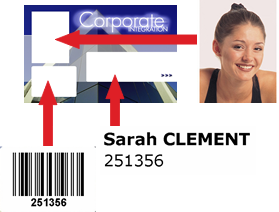
The ID picture length must not exceed 35mm.
The ID picture can be placed anywhere on the card. Thanks to a
special driver command, the printer detects the color point of your ID
picture. The card can then correctly position itself under the print head
so that printing starts exactly where the picture is required on the card.
The ID picture must be the only element in color on your card
design.
Black elements (texts, barcode, etc.) can be placed anywhere on
the card since they are managed in the same way as with the standard
/ full YMCKO ribbon.
|
| To print your cards with the Evolis card printers
using the Half-Panel Color Ribbon, please follow the procedure
as explained below.
Note that the following procedure is valid for the New Pebble card printer
however it is also the same procedure that goes for all other Evolis color
card printer. |
NOTE!
Cards can be either blank or pre-printed with a color
background. When printing on pre-printed cards, make sure
that there is no overlay (O) where the color picture will be
printed; otherwise the printing quality would be altered. |
| 1. Install the ribbon in the printer |
|
Set the ribbon from the driver Properties
1. From “Start”in the Windows bar, click on “Settings”then “Printers”
2. Select “Evolis Pebble”
3. In “File”, in the bar of the window menus, select “Properties”(for
Windows 95/98/2000) or “Default Document”(for Windows NT 4.0) and
point to “File”and select "Print"
4. The dialog box shows you that the New Pebble printer is selected
5. Then click on “Properties”
6. The dialog box of the New Pebble driver opens |
7. In the Main tab, select the “Half-Panel Color Ribbon”and
click on the
“Set Ribbon”button as shown below: |
|
8. In the “Graphic”tab, select the “Black panel
area the “All black dots”
option, as indicated below: |
|
9. Close the printer cover
10. The ribbon auto synchronizes. You are now ready to print.
|
|